Map of an address
A square or 16:9 map with an individual address and textfield on either side.
Item-IDs: 06-013 | 06-014 | 06-015 | 06-016
Sample views Step by step guide Screen adaptation
Sample views
Square
DFAU
Gustav-Weißkopf-Str. 590768 Fürth
DE
Phone: +49 911 239808-70
Email: info@dfau.de
This is a map element that displays an address above any type of information. The text and/or other type of content is displayed underneath the address and above social media icons, if you wish to link to social media channels.
16:9
DFAU
Gustav-Weißkopf-Str. 590768 Fürth
DE
Phone: +49 911 239808-70
Email: info@dfau.de
This is a map element that displays an address above any type of information. The text and/or other type of content is displayed underneath the address and above social media icons, if you wish to link to social media channels.
Step by step guide
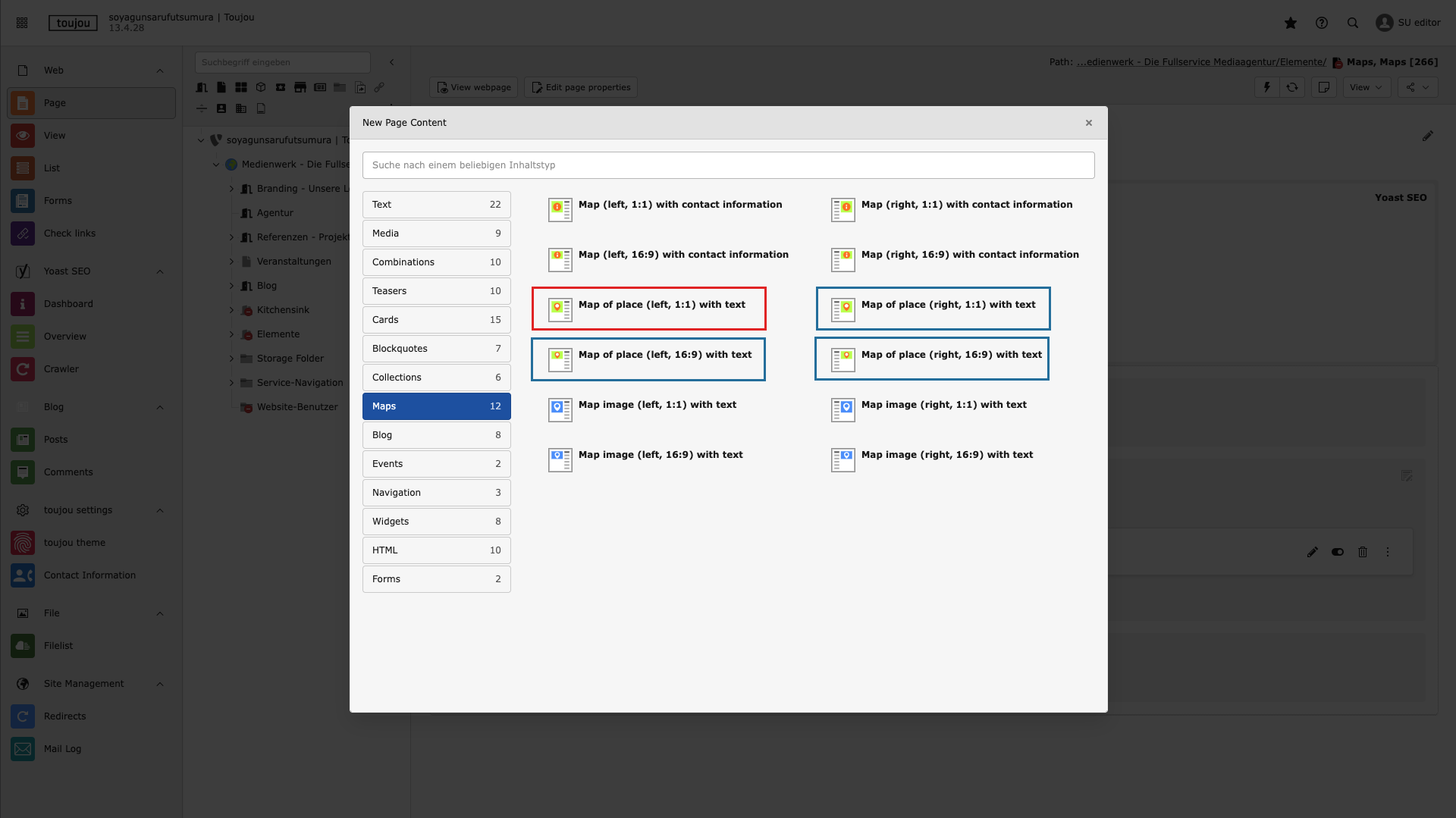
Create new element
- Click on the + Create New Content button to create any map element.
- In the Map Elements tab, select the map address element of your choice that is named accordingly.
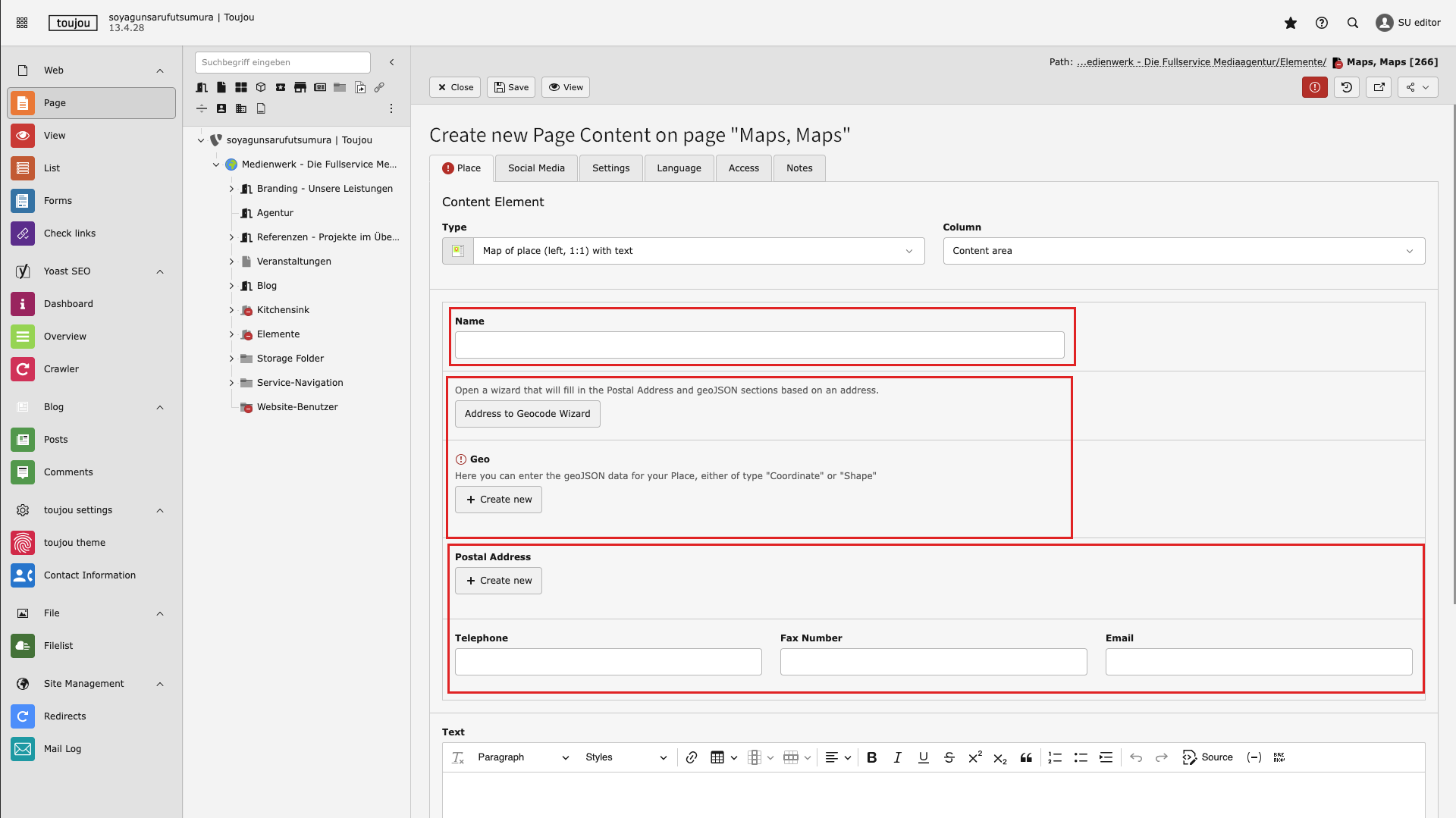
Insert name and address
- Enter a name into the name field.
- For your adress to define and enter, you can choose between three options: Geocode wizard, Geo Coordinates and postal adress.
- To ensure the correct display of an address, at least the name of the street, zip code and city (possibly country) are required.
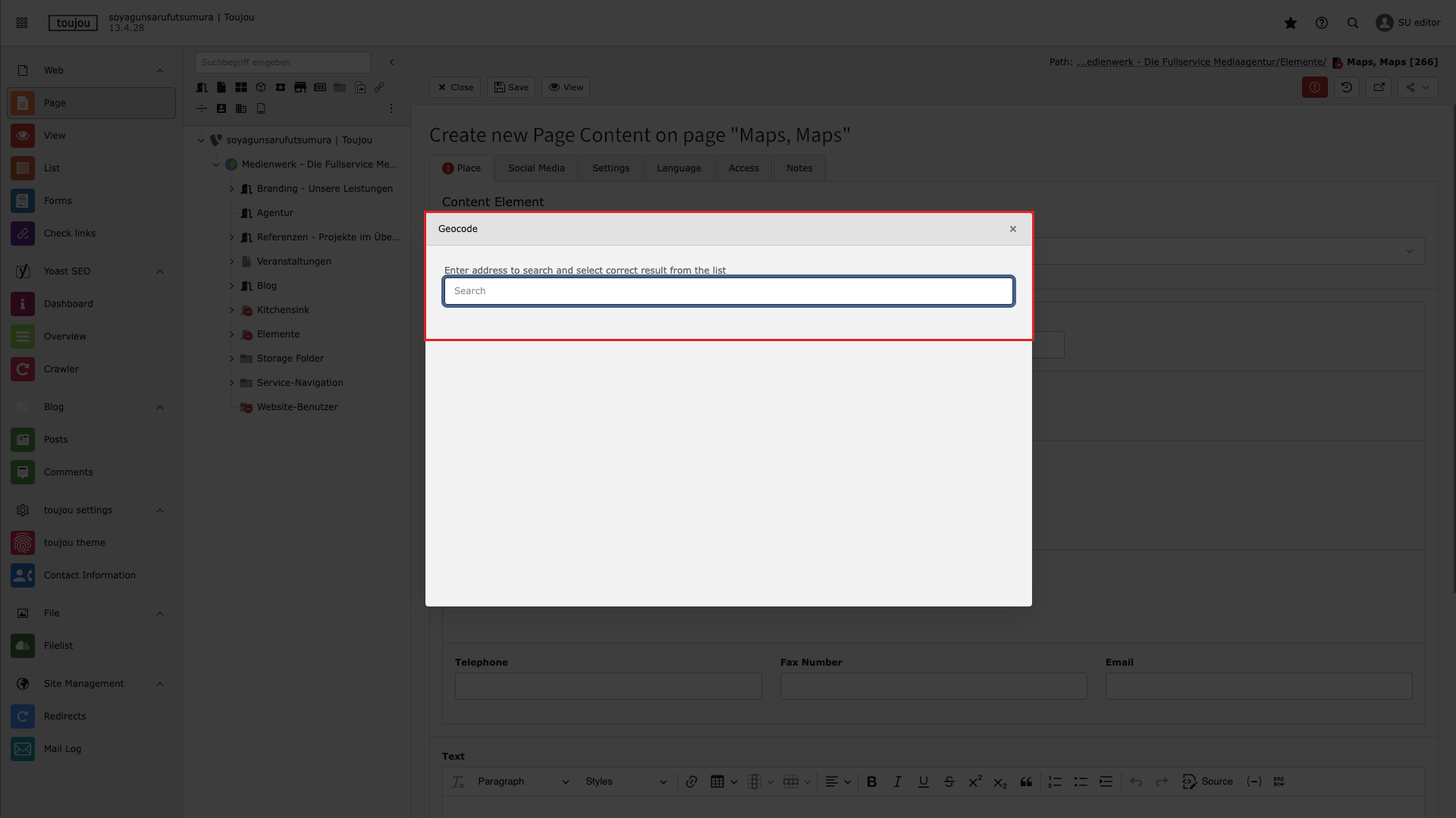
Geocode wizard
- To use the Geocode Wizard, click the Geocode Wizard button for the address from the previous step.
- In the window that opens, enter the street, house number, and city in the text field.
- The search field has auto-complete functionality. Click on the suggestion that appears.
- The window will then close, and you will find the data in the Geocode Wizard section.
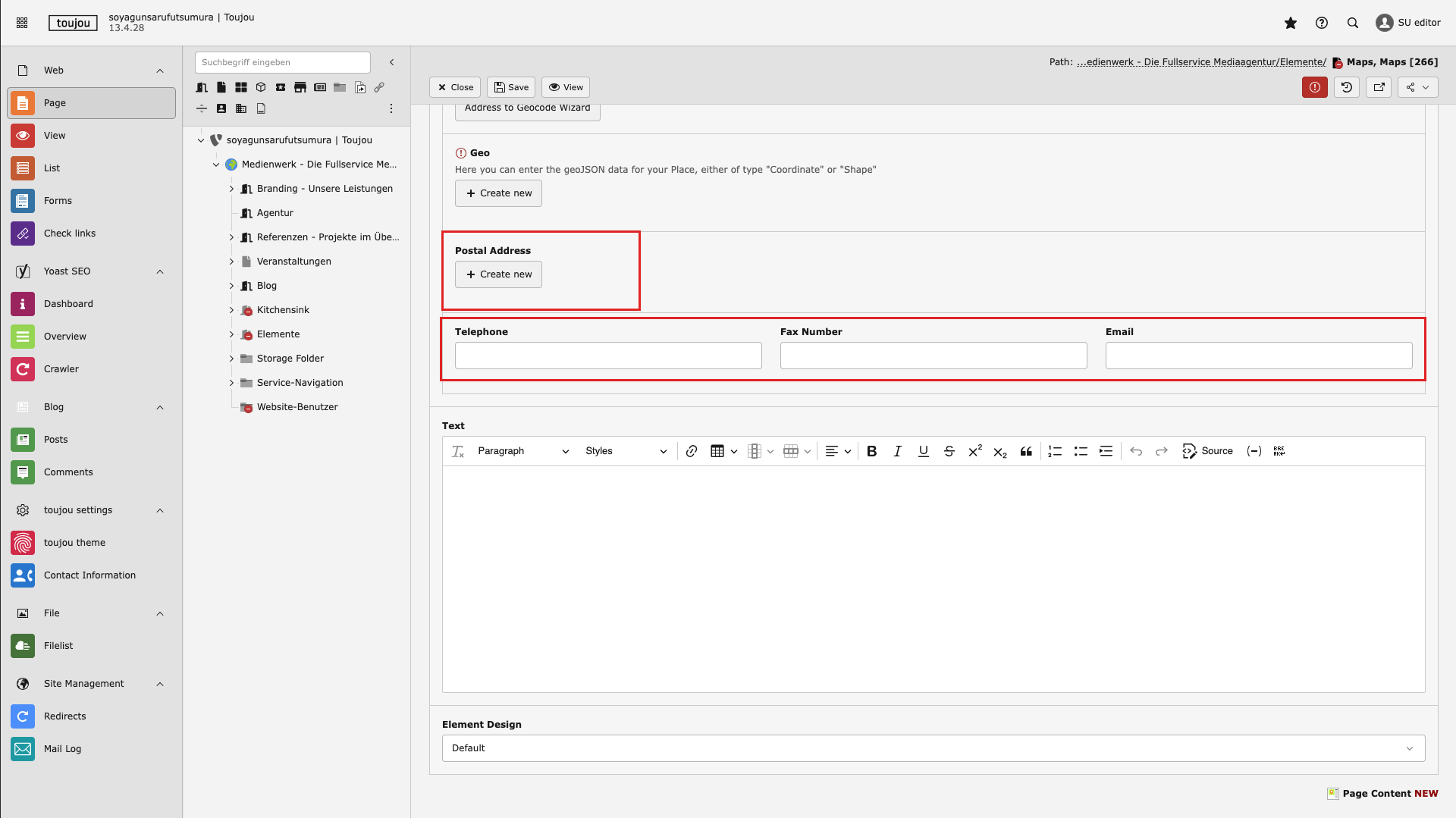
Postal adress
- To enable the postal address option, click the + Create new button.
- Enter all relevant information.
- The Phone, Fax, and Email fields in this section are also available for the other address options.
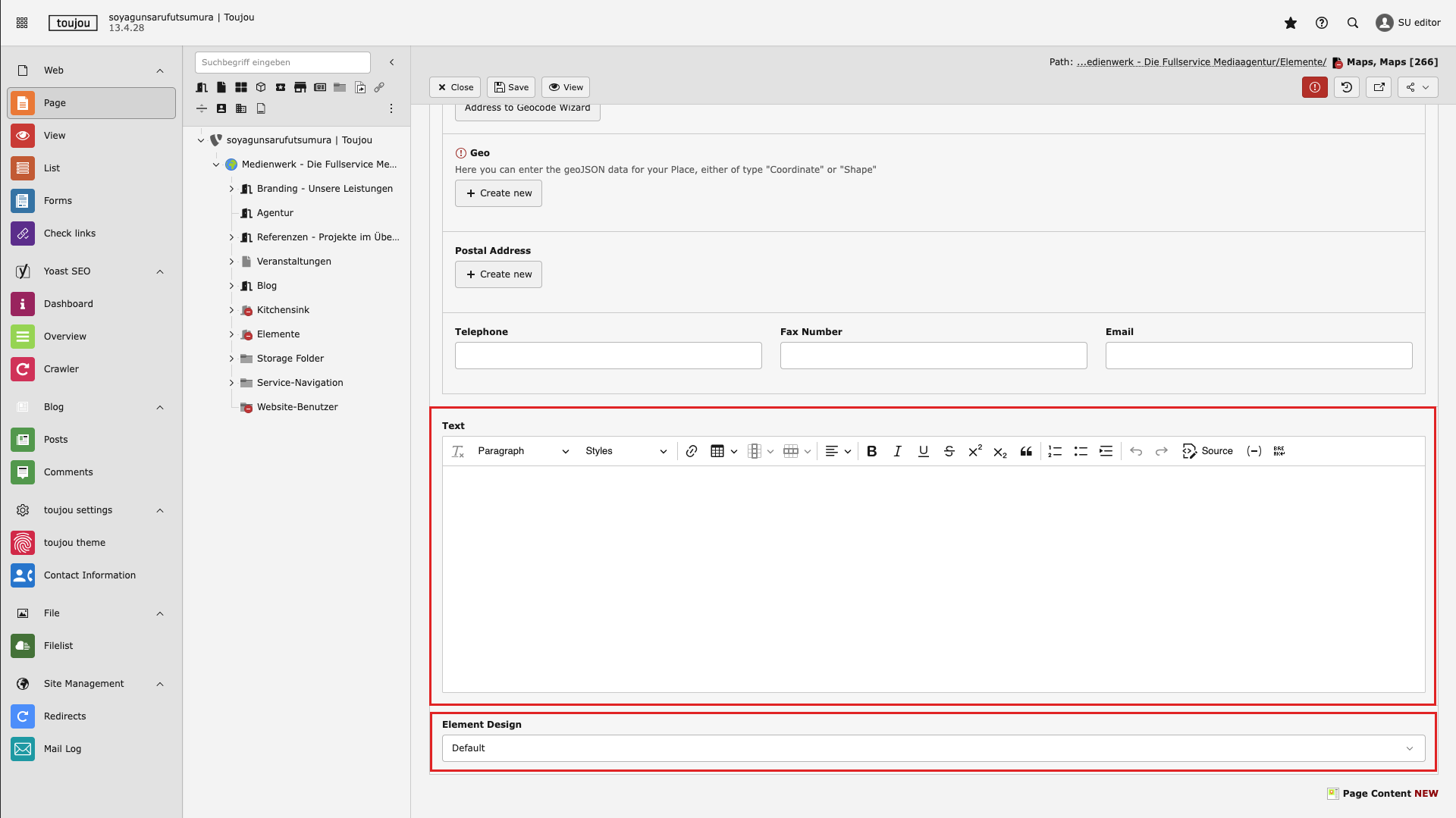
Insert text
- Enter your text into the text field.
- If you copy the text from another file, be aware that formatting may also be copied.
- You can format the text directly in the text field using the menu above it.
- In the Element Design section, you can customize the appearance of the element.
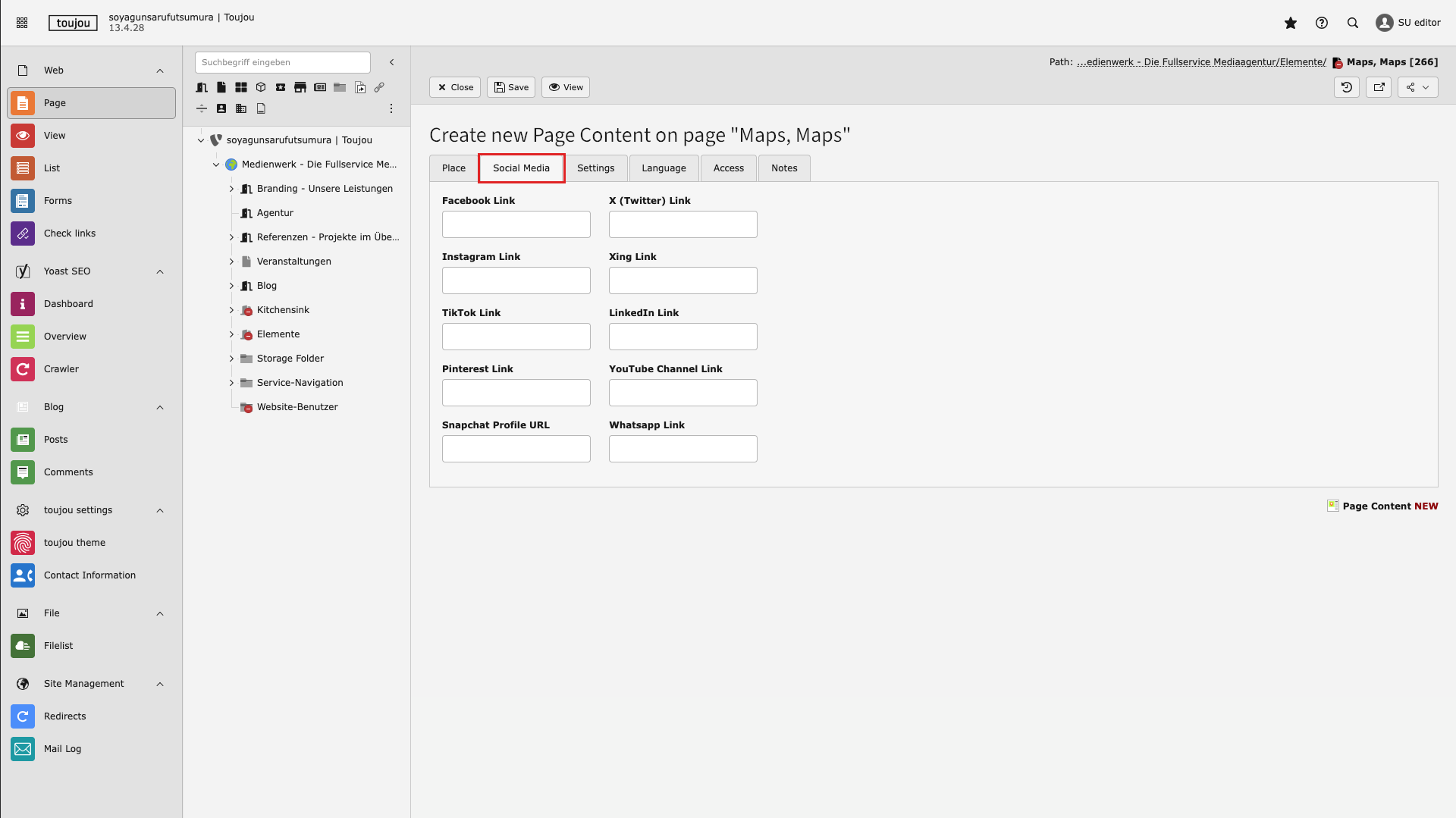
Enter Social Media profiles
- In the Social Media tab, you can create links for various social media channels.
- For each platform, enter the direct link to the desired profile.
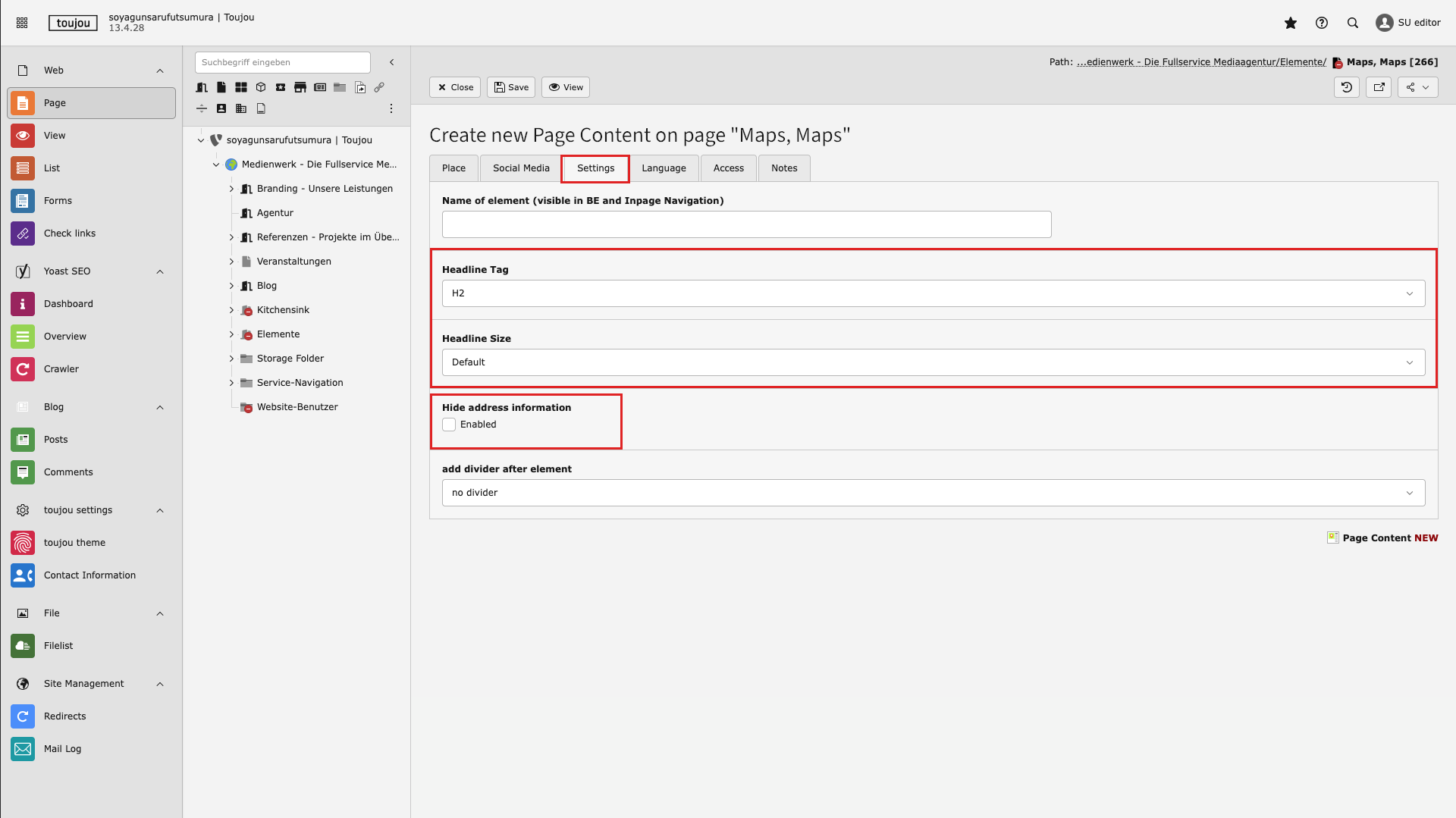
Define headine and hide adress
- Under the Settings tab, in the Headline section, you can define the H tags (relevant for code and search engines) using the dropdown menu.
- Use the Headline Size option to set the font size of the headline.
- Click the checkbox in the hide address information section to enable the feature. If a checkmark appears, the data is hidden and only the predefined text will be displayed.
Screen adaptation
Responsive behaviour: If there isn’t enough space to display map and contact next to each other, all maps will show the contact information directly below. This ensures the consistent appearance of all maps on small devices, regardless of the original orientation.
Worth noting:
- This element is suitable for the display of addresses that are not already entered in your basic Contact Information settings. In addition, there is a text area to display further information.
- To display an address correctly, you need a mapbox token which has to be implemented in the toujou Theme settings.