Map with contact information
A square or 16:9 map with contact information on either side.
Item-IDs: 06-001 | 06-002 | 06-003 | 06-004
Sample views Step by step guide Screen adaptation Get a Google API Key
Sample views
Square
16:9
Step by step guide
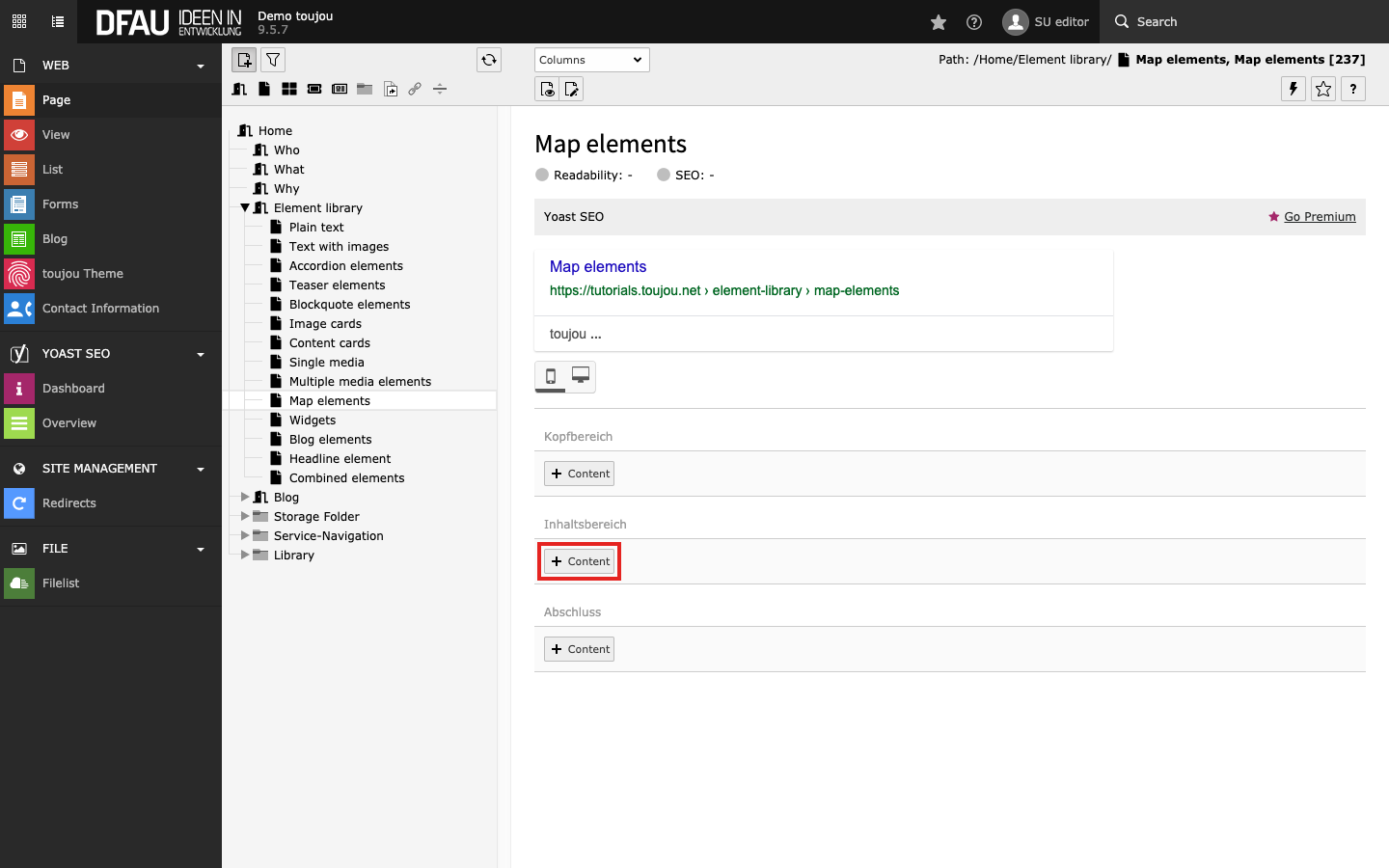
Create new element
- Click on the + Content button to create any map element.

Select map element
- In the Map Elements tab, select the map contact element of your choice that is named accordingly.
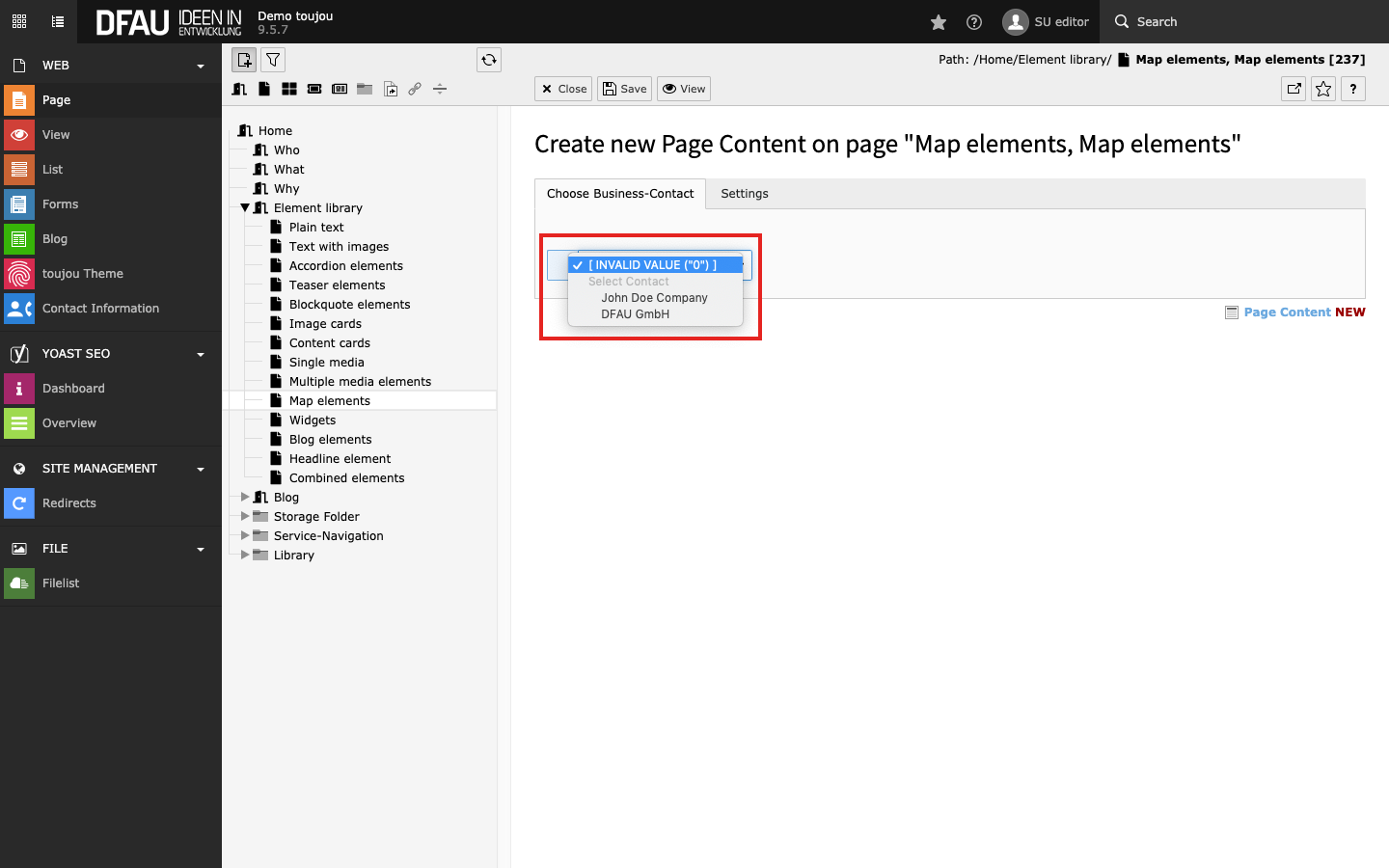
Select contact
- The tab Choose Business-Contact offers a dropdown list of your current contacts that you have already set in the Contact Information module.
Screen adaptation
Responsive behaviour: If there isn’t enough space to display the map and the contact information next to each other, the contact information will be shown directly below. This ensures the consistent appearance of all maps on small devices, regardless of the original orientation.
Worth noting:
- The contact data is determined beforehand by the basic settings you made in the Contact Information module. The text area can’t be edited.
- To display an address correctly, you’ll need a Google API key from the Google Cloud Platform.
Linked topics
toujou set-ups & TYPO3 tutorials related to this element description.