---
title: "Modal in TYPO3: The element for your toujou website"
url: "https://www.toujou.com/service/tutorials/page-content/text-editing/modal/"
description: Modal is an easy-to-use element in toujou for your TYPO3 website Step by step manual ✔ with screenshots ✔ and pieces of advice ✔
date: 2021-07-20
modified: 2022-09-27
---

# Modal in TYPO3: The element for your toujou website

1. [Home](https://www.toujou.de/)
2. [Service](https://www.toujou.de/service/)
3. [Tutorials](https://www.toujou.de/service/tutorials/)
4. [Content editing](https://www.toujou.de/service/tutorials/page-content/)
5. [Text editing](https://www.toujou.de/service/tutorials/page-content/text-editing/)
6. [Modal](https://www.toujou.de/service/tutorials/page-content/text-editing/modal/)

   Modal
=====

A modal allows you to display additional content on a toujou page without requiring users to leave the page. The TYPO3 element modal appears like a pop-up window that shows the additional information. We have outlined the steps to set up a modal in toujou below.

[Manual](#c1010022) [Pieces of advice](#c1010024)

Related topic: [Text editing](https://www.toujou.de/service/tutorials/page-content/text-editing/#c1004680)

---

  Manual
--------

 In order to link to a modal window as described below, you need to have a content page already created that can be accessed in your page tree. See the tutorial for [creating pages](https://www.toujou.de/service/tutorials/pages-navigation/).

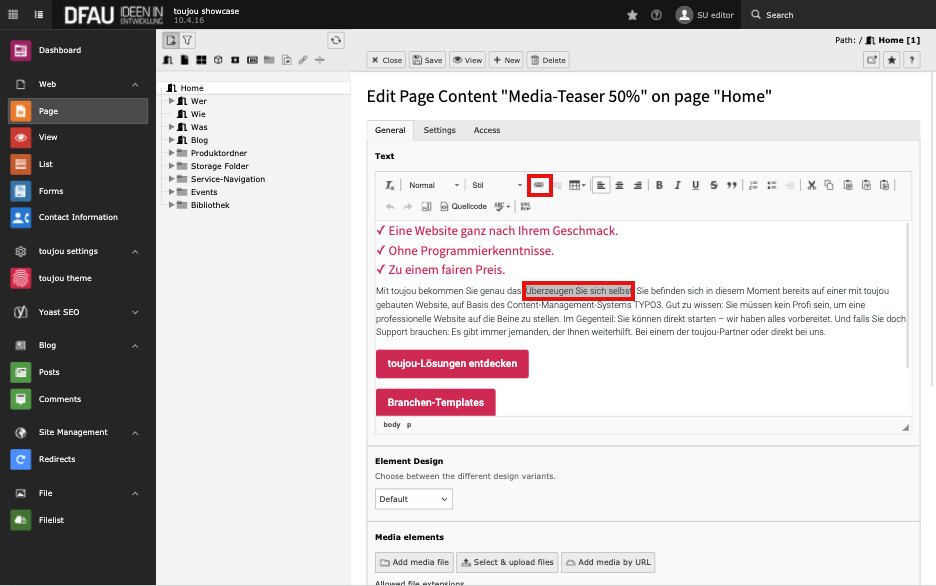
     [ ![](https://www.toujou.de/_assets/processed/jLWeRyLLDIyQ9HCK5RJJxpHE3mlEjWFtgzrjWylqhL8/q:85/c:936:526.49999999999:fp:0.5:0.5/rt:force/w:432/h:243/fn:Y3NtX01vZGFsX2VuX21hcmtfbGlua3RleHRfNmViYzNlMDdkMw:t/cb:cb4599f16f5301c714270bbd22e97d1d312b33b5/bG9jYWw6L2ZpbGVhZG1pbi90b3Vqb3UvdHV0b3JpYWxzLzA2X3BhZ2UvTW9kYWwvTW9kYWxfZW5fbWFya19saW5rdGV4dC5qcGc) ](https://www.toujou.de/fileadmin/toujou/tutorials/06_page/Modal/Modal_en_mark_linktext.jpg) ### Mark link text

- Open the content element that contains the word or text passage you want to link.
- Select the text to be linked with the modal.
- Click on the **link button** above the editor mask. A new pop-up window will open.
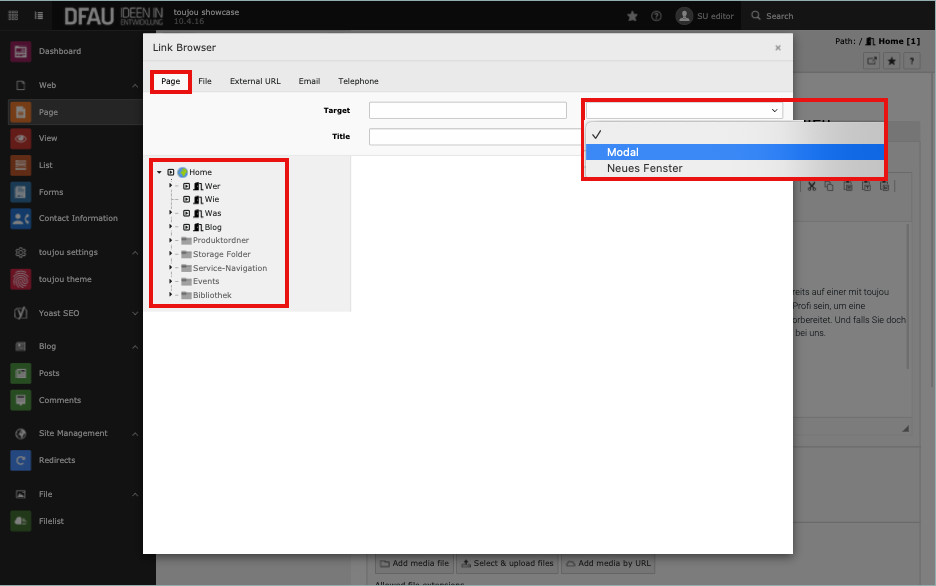
    [ ![](https://www.toujou.de/_assets/processed/gRqQUkhOi8KiNy1piPyMVelyAraGTv6jFh5X922Bjjs/q:85/c:936:526.49999999999:fp:0.5:0.5/rt:force/w:432/h:243/fn:Y3NtX21vZGFsX2VuX3NlbGVjdF9tb2RhbF85MzA1NTI2YmRi:t/cb:edf0914515e8d0c71fbc03a1197075f62655d1ba/bG9jYWw6L2ZpbGVhZG1pbi90b3Vqb3UvdHV0b3JpYWxzLzA2X3BhZ2UvTW9kYWwvbW9kYWxfZW5fc2VsZWN0X21vZGFsLmpwZw) ](https://www.toujou.de/fileadmin/toujou/tutorials/06_page/Modal/modal_en_select_modal.jpg) ### Select Modal

- Click the selection box to the right of the target field and select **Modal** from the drop-down menu.
- The term "toujou-modal" will appear in the *target* field. Alternatively, you can enter "toujou-modal" directly in the field *target*.
- Then select the **page** you want to link to. You may need to expand the page tree to find the respective page.
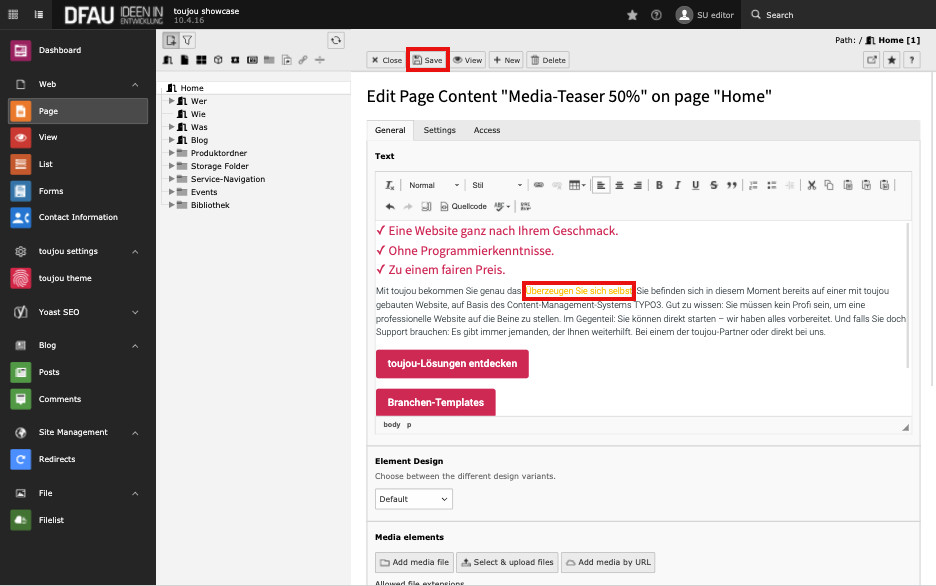
    [ ![](https://www.toujou.de/_assets/processed/Yik1i4QoChxBJoNf2BQzbIaGhCrwOeUdRTMa_sijH-I/q:85/c:936:526.49999999999:fp:0.5:0.5/rt:force/w:432/h:243/fn:Y3NtX21vZGFsX2VuX3NhdmVfc2V0dGluZ3NfN2JkNDY0ZjYzZg:t/cb:690f6daa3a4dba2e3a598e6a8eb0e071b10a34ab/bG9jYWw6L2ZpbGVhZG1pbi90b3Vqb3UvdHV0b3JpYWxzLzA2X3BhZ2UvTW9kYWwvbW9kYWxfZW5fc2F2ZV9zZXR0aW5ncy5qcGc) ](https://www.toujou.de/fileadmin/toujou/tutorials/06_page/Modal/modal_en_save_settings.jpg) ### Save the settings

- After clicking on the desired page, the pop-up window will close again. The linked text will be highlighted in color. To highlight the link, set [link buttons](https://www.toujou.de/service/tutorials/page-content/text-editing/#c1001958).
- **Save** your changes.

  ---

 Pieces of advice
----------------

**toujou is based on TYPO3 and anyone familiar with TYPO3 knows that there are many different options to use to reach your desired results. We would like to point out important information and little tricks that can assist you when you’re creating and editing your website.**

The modal in toujou does not display the content in the header area (i.e. header elements) of a page. Only the content located in the teaser area, content area and bottom area will appear.

If you want to open an image or video as a modal, it must be previously stored in your [file list](https://www.toujou.de/service/tutorials/file-list-module/#c1004649) in the TYPO3 backend. The page title in the modal corresponds to the page title that is also shown in search engines. To edit the page title you have to go to the SEO tab in the [page properties](https://www.toujou.de/service/tutorials/yoast-seo/#c1004683).

If you want to edit a link in the modal, you can easily change it by actualizing the respective page in the pop-up and then by clicking on *update*.

**Worth noting**: As the modal is referring to a page, the modal will appear in the results of a Google search or any other search engines as a page.

---