Blog cards
Single or multiple blog teaser cards including a link, a title, and text next to an image – with an optional adjacent textfield.
Item-IDs: 07-001 | 07-007 | 07-008 | 07-009 | 07-010 | 07-011 | 07-022
Sample views Step by step guide Screen adaptation
Sample views
-
General TYPO3 Camps toujou at T3CON
04.10.2023
Nominated for the TYPO3-Award & with many ideas in the luggage to Düsseldorf.
Read more -
Press Website quality Opening minds for open source website
02.02.2023
Mathias Bolt Lesniak talks about the various advantages ob open source websites.
Read more -
General How to toujou as editor
29.07.2022
We give you some advices for an easy editing in toujou.
Read more -
[Translate to English:] Press TYPO3 Camps toujou goes t3imd
04.12.2020
The numerous TYPO3 participants around the world can look forward to toujou as DFAU GmbH supports the event with its website builder toujou.
Read more -
Lisa-Marie Mayr steht Kunden, die eine professionelle Website möchten, seit 2019 mit Rat und Tat zur Seite. General Service Website quality Interview: "I would like more people to put more emphasis on a good website."
13.11.2020
Lisa-Marie Mayr blickt auf ihr erstes toujou-Jahr zurück. Im Interview erläutert sie, was sie an TYPO3 besonders schätzt – und gibt Tipps für Redakteure.
Read more
-
Website quality Yoast SEO -
Company Website quality medatsu - new design options for your website
08.02.2024
More emotions, more individual design options: We introduce to you medatsu, the fourth toujou theme.
Read more -
TYPO3 Camps Company -
General TYPO3 Camps toujou at T3CON
04.10.2023
Nominated for the TYPO3-Award & with many ideas in the luggage to Düsseldorf.
Read more
This is a headline
Lorem ipsum dolor sit amet, consectetur adipiscing elit, sed do eiusmod tempor incididunt ut labore et dolore magna aliqua. Ut enim ad minim veniam, quis nostrud exercitation ullamco laboris nisi ut aliquip ex ea commodo consequat. Duis aute irure dolor in reprehenderit in voluptate velit esse cillum dolore eu fugiat nulla pariatur.
Step by step
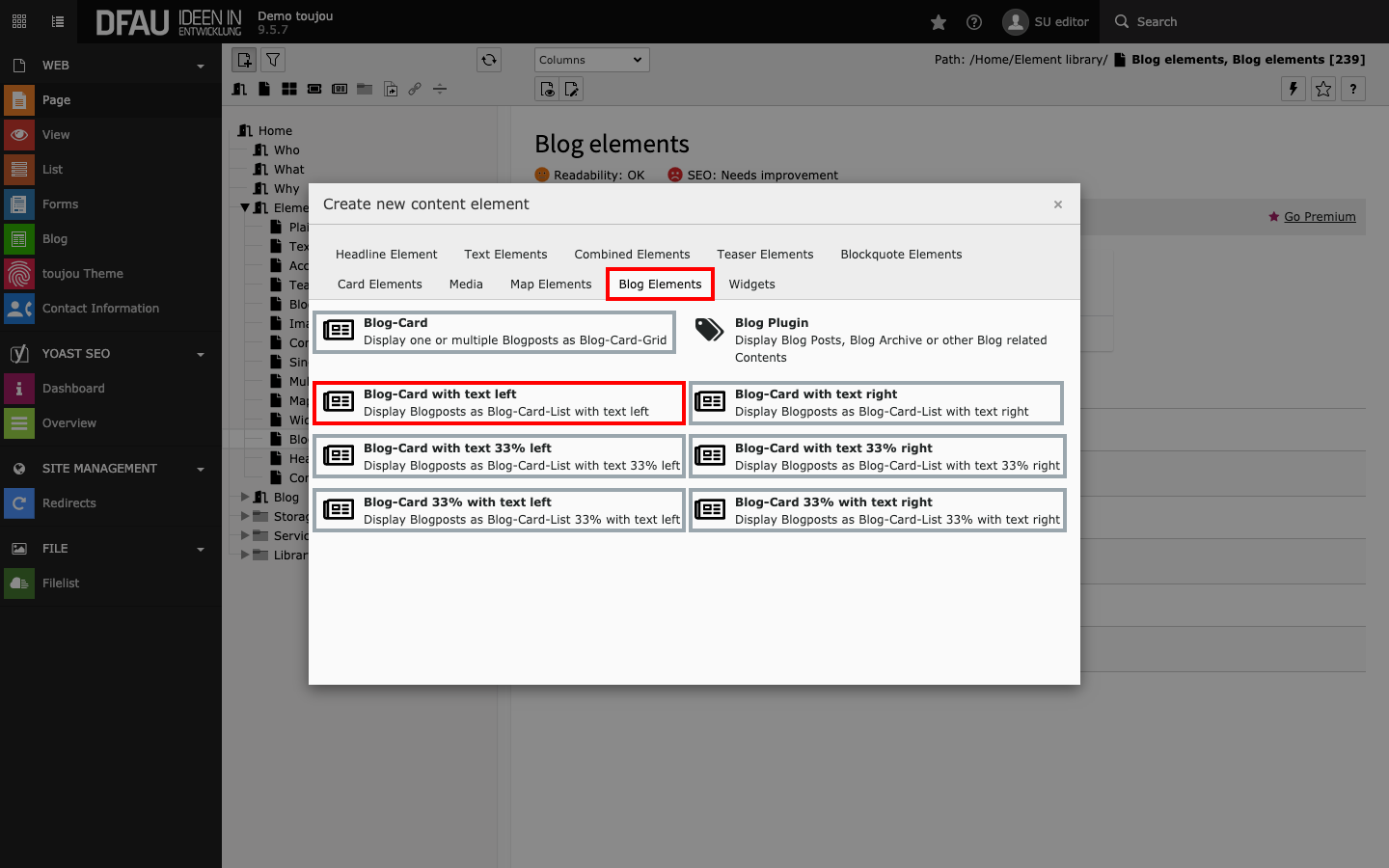
Create blog card(s)
- Click the Content button to create any blog card element.
- In the tab Blog Elements select the blog card element of your choice.
- Note: The Blog Plugin is not a regular toujou element but is instead designed to fill the entire content area of a page. See tutorial within the blog administration.
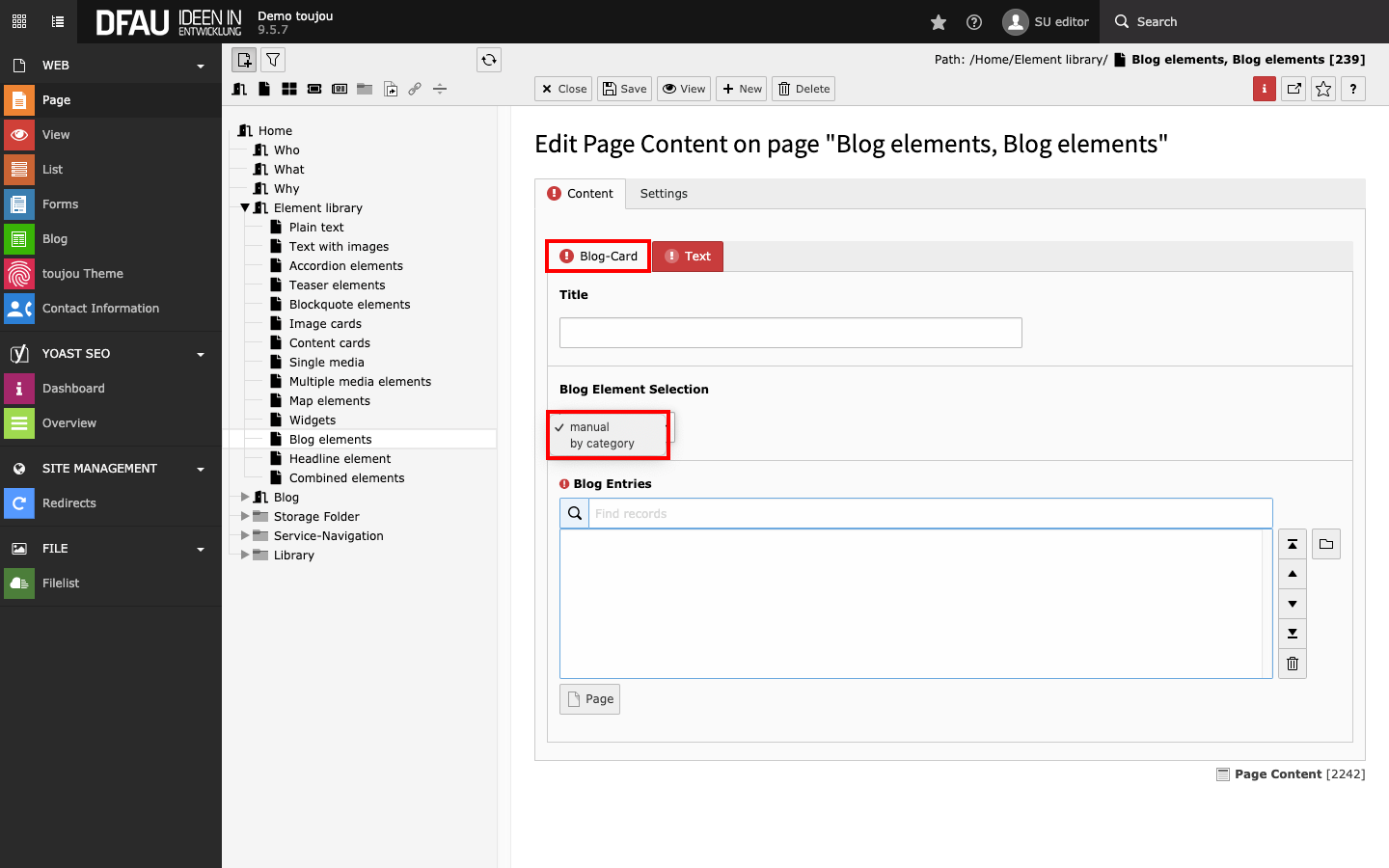
Select blog entries
- In the Blog Element Selection section of the Content tab, choose between manual or by category (see description below).
- The manual option is set by default. If you select by category, a »Refresh required« window opens. Confirm the desired option by clicking OK.
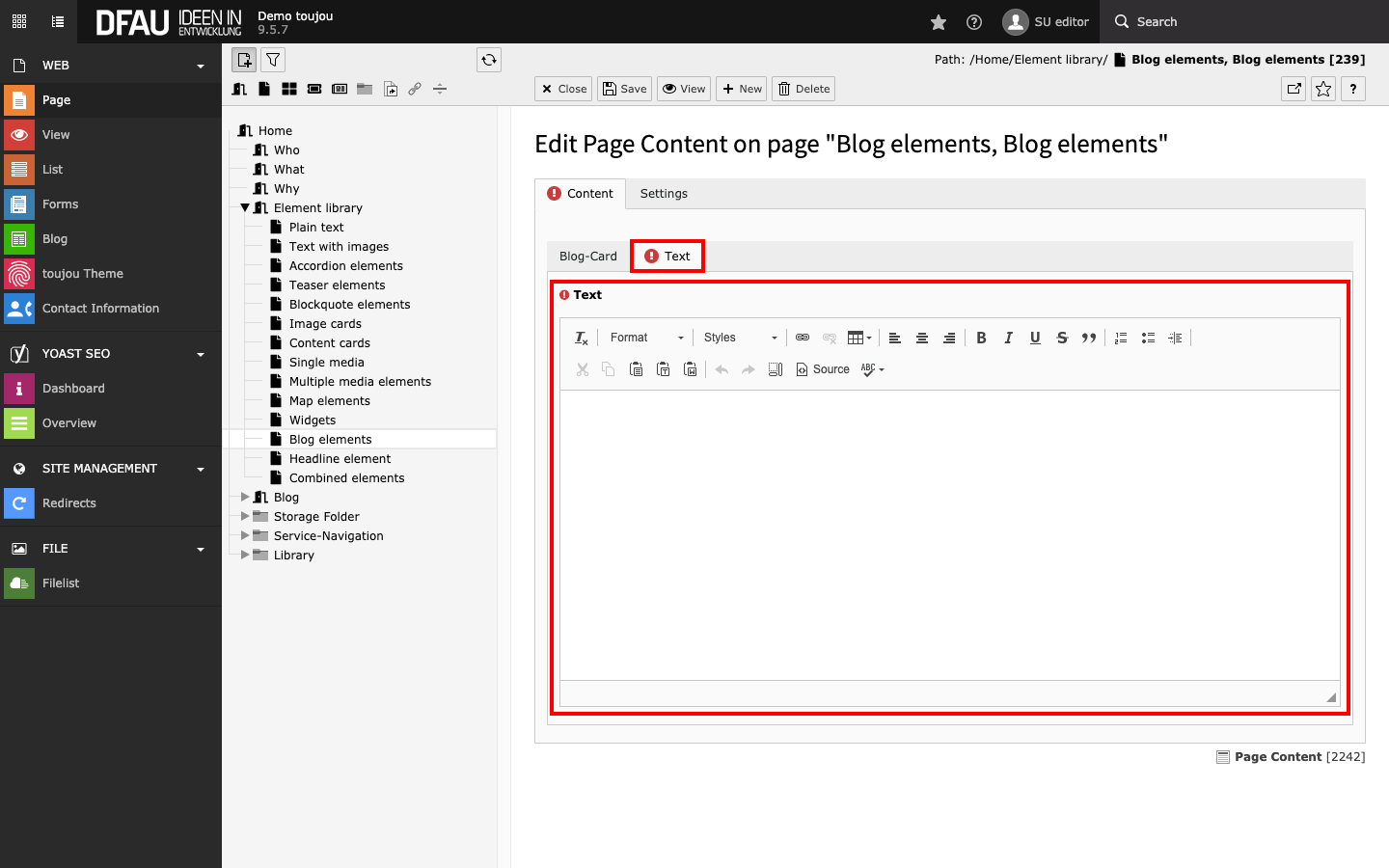
Insert and format text
- In the Text section of the Content tab, paste your text into the editor.
- If you copy the text from another file, pay attention to possibly copied formatting.
- The text can be formatted directly within the rich text editor, with the help of the menu above the editor.
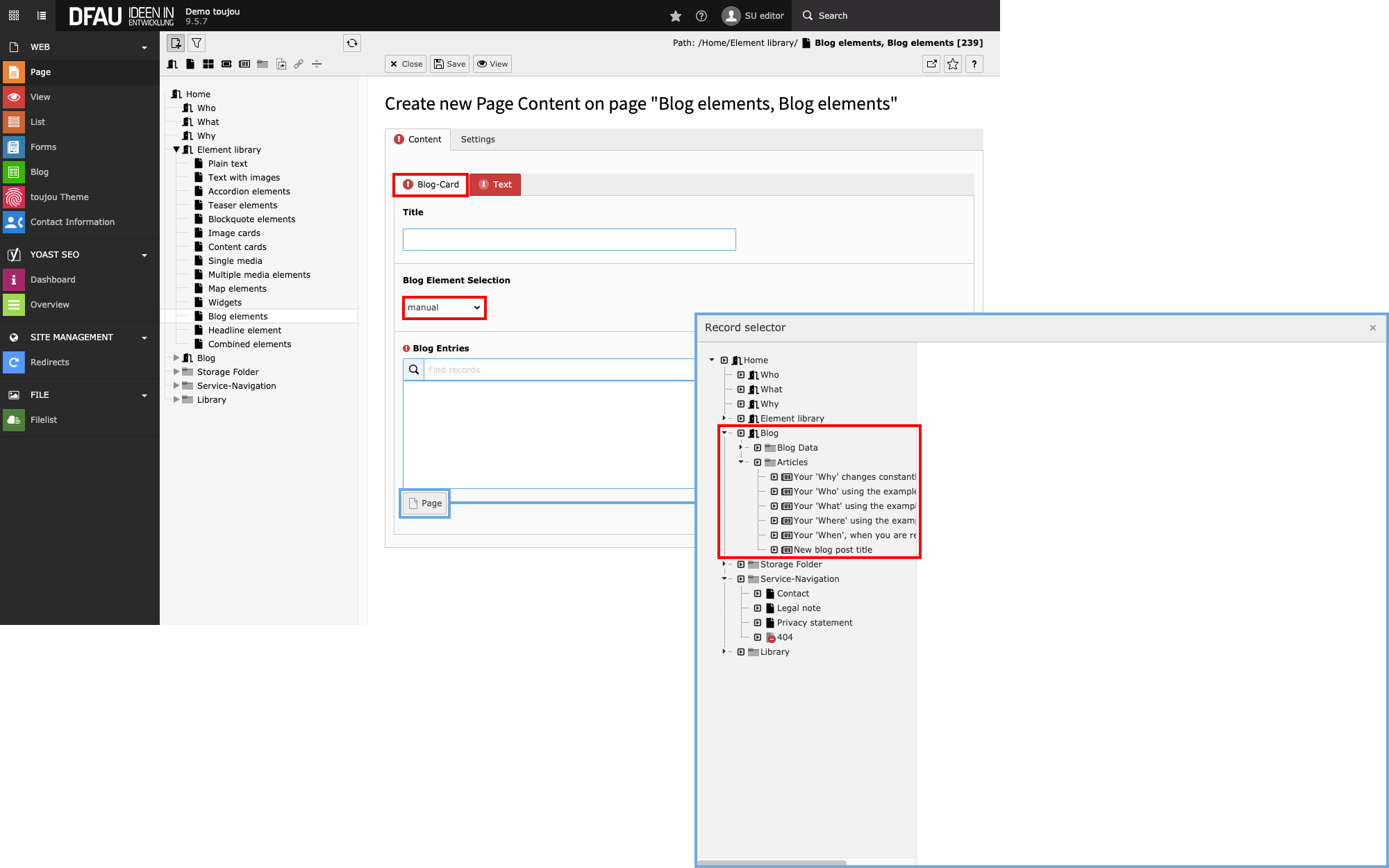
Manual
- At the bottom of the Blog Entries section, click the Page button
- In the Record Selector window that opens, on the left side, open the folder that contains your blog articles.
- Click on the desired article. Repeat the process according to the number of desired articles.
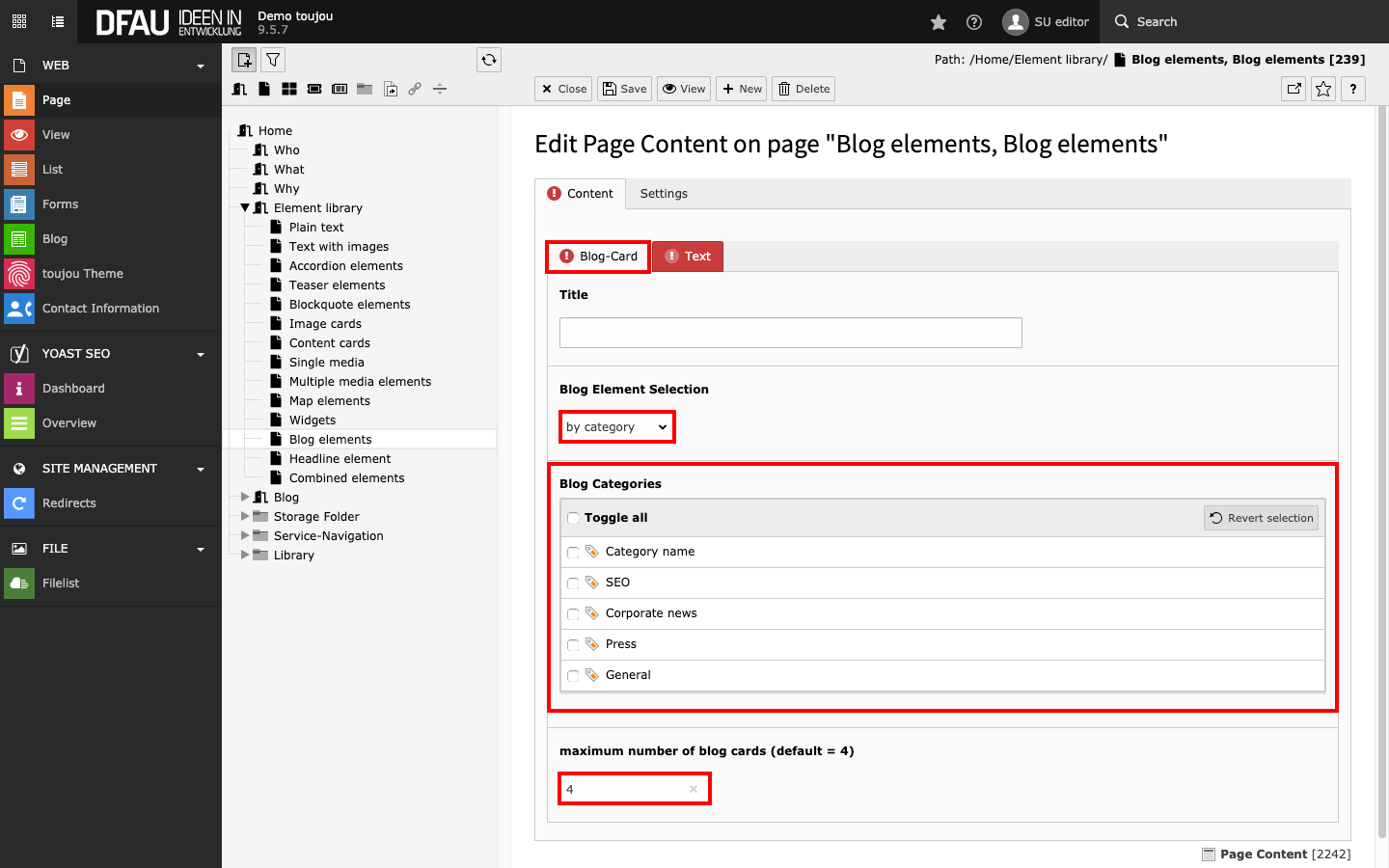
By category
- In the Blog Categories section, click the checkboxes of the desired blog categories or Toggle all if you want all new articles to be inserted independently of their categories.
- In the field maximum number of blog cards (default = 4), determine how many articles should be displayed within this element.
Screen adaptation
Responsive:
- A single blog card takes the text width of the page, two cards side by side the maximum content width. If there is not enough space, all blog cards will display the image above the teaser text on smaller devices.
- Blog cards with text take the maximum content width. If there is not enough space, the text is placed above the blog cards.
Worth noting: With the blog element selection by category, the element always puts the latest article first and removes the appearance of the oldest element from the view.
Depending on the theme selection, the blog cards can assume the full grid width or text width. Also the arrangement next to each other or below each other is different from theme to theme.
Linked topics
toujou set-ups & TYPO3 tutorials related to this element description.